> For the complete documentation index, see [llms.txt](https://docs.dietrichs.com/llms.txt). Markdown versions of documentation pages are available by appending `.md` to page URLs; this page is available as [Markdown](https://docs.dietrichs.com/tutorials/tutorials-en/learning-the-basics/exploration-journey/material-database/tutorial-2-exploring-dietrichs-material-database.md).
# Tutorial 2: Exploring Dietrich's Material Database
This tutorial focuses on navigating and exploring the contents of Dietrich's material database after you've successfully accessed it.
### Introduction
Once you've accessed the material database as covered in Tutorial 1, you'll want to understand how to efficiently browse, search, and examine the materials available to you. The database contains a wealth of information that can be navigated in various ways.
### Understanding the Database Structure
#### Main Interface Components
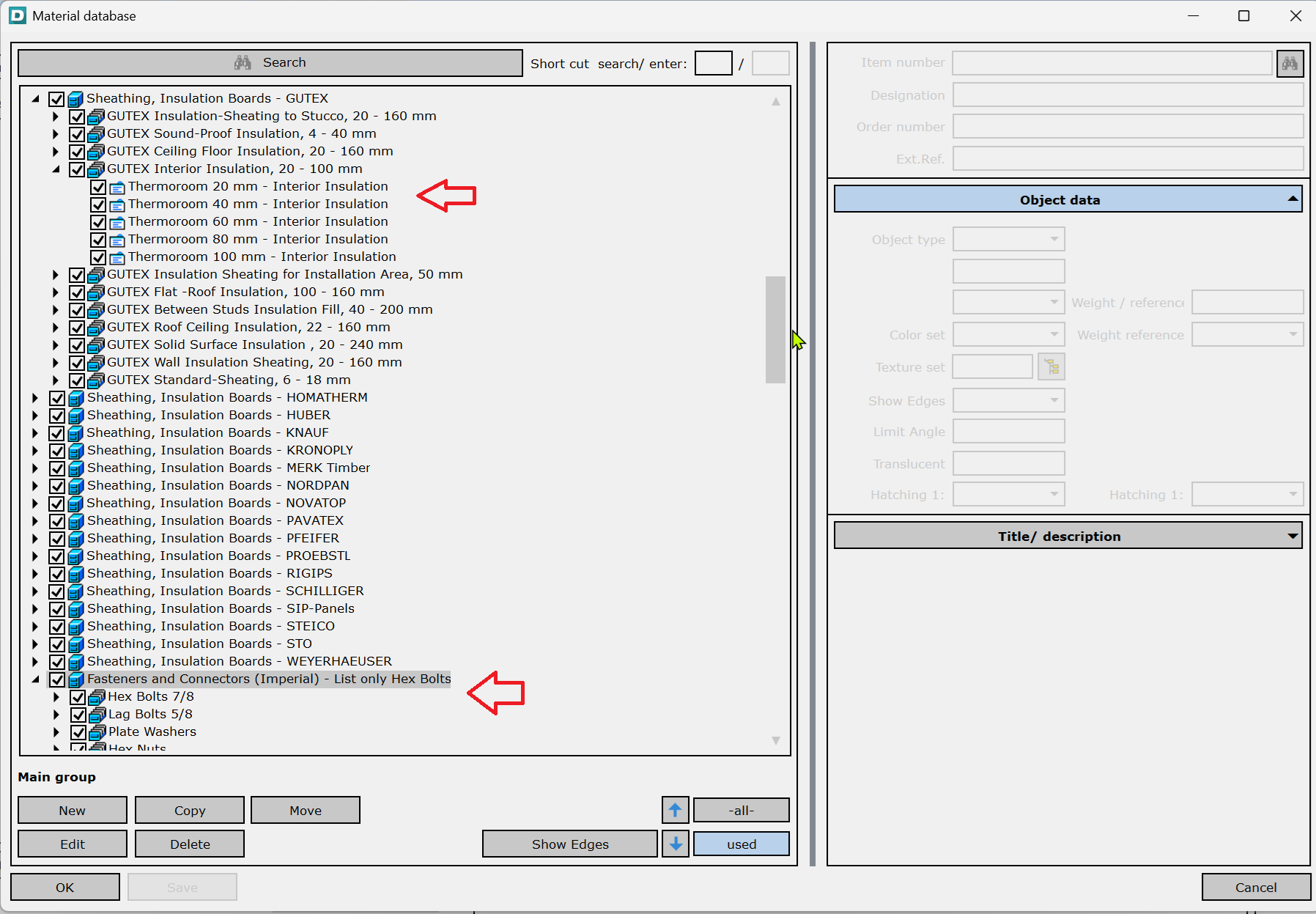
When you open the material database, you'll typically see groupings, sub-groupings and item.
Refer to screenshot:
### Browsing Materials
#### Using the Category Tree
1. Look for the category tree or dropdown menu in the material database interface
2. Click on a category to view its contents
3. Expand categories (usually with a + icon) to see subcategories
4. Select any category to display its materials in the item list
#### Common Categories Include:
* Structural timber (beams, posts, rafters)
* Engineered wood products (glulam, LVL, CLT)
* Sheet materials (plywood, OSB, gypsum)
* Fasteners and connectors
* Insulation materials
* Finishing materials
### Searching for Materials
#### Basic Search
1. Locate the search field (typically at the top of the database window)
2. Enter search terms related to what you're looking for
3. Press Enter or click the search button
4. The results will display matching materials
#### Advanced Search Techniques
* **Search by item number**: Enter a full or partial item number
* **Search by description**: Enter keywords from the material description
* **Use wildcards**: Use \* or ? to replace unknown characters
* **Combine terms**: Enter multiple words to find materials matching all terms
* **Filter by properties**: Some versions allow filtering by specific properties
### Examining Material Properties
#### Viewing Basic Properties
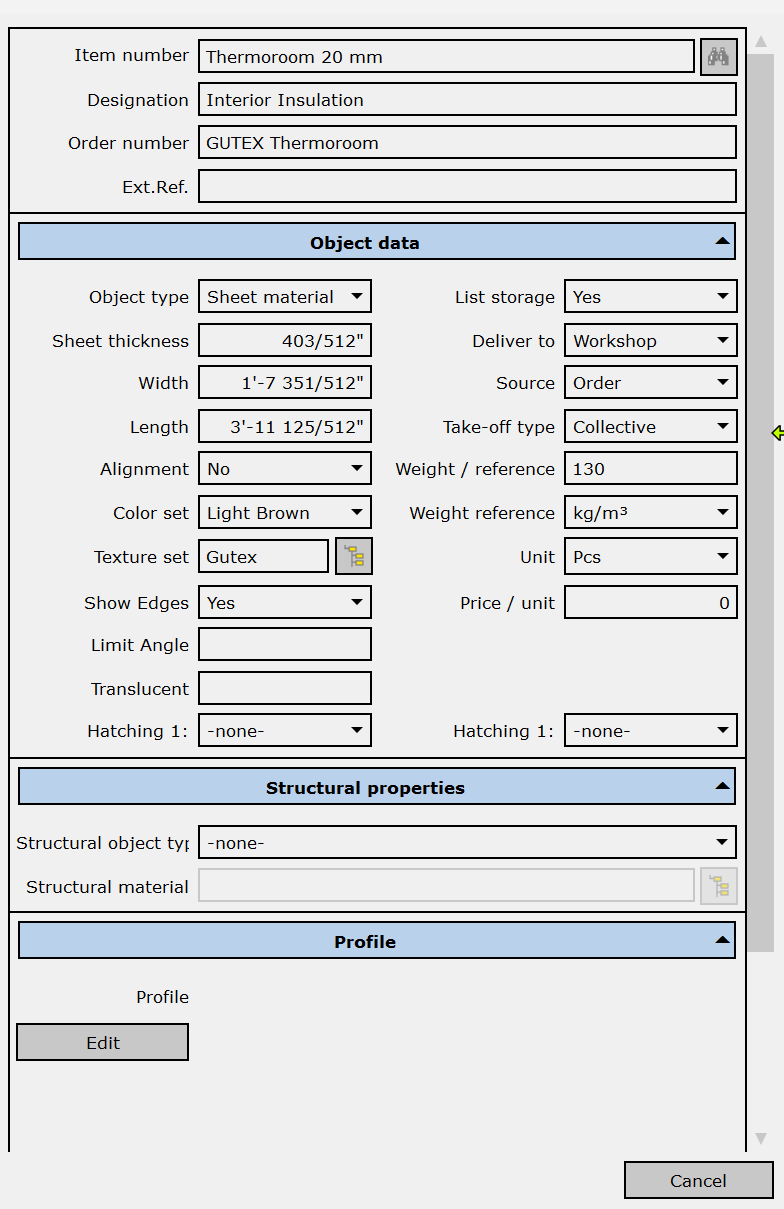
When you select a material from the list, the properties panel will display information such as:
* Full item number
* Description
* Dimensions
* Material type
* Weight/density
* Price (if entered)
#### Exploring Detailed Properties
Depending on the material type, additional properties may include:
* Structural properties (strength values, modulus of elasticity)
* Environmental classifications
* Manufacturing standards
* Availability information
* Ordering details
#### Understanding Property Types
Properties typically fall into categories:
* **Descriptive properties**: Name, description, category
* **Physical properties**: Dimensions, weight, density
* **Mechanical properties**: Strength values, elasticity
* **Manufacturing properties**: Grade, quality, species
* **Commercial properties**: Price, supplier, ordering information
### Next Steps
Now that you understand how to explore and navigate the material database, you're ready to:
* Create new materials (covered in Tutorial 3)
* Work with replacement item numbers (covered in Tutorial 4)
* Transfer data between databases (covered in Tutorial 5)
***
With these exploration skills, you can efficiently find and examine materials in your Dietrich's database. The next tutorial will show you how to create and edit your own materials.